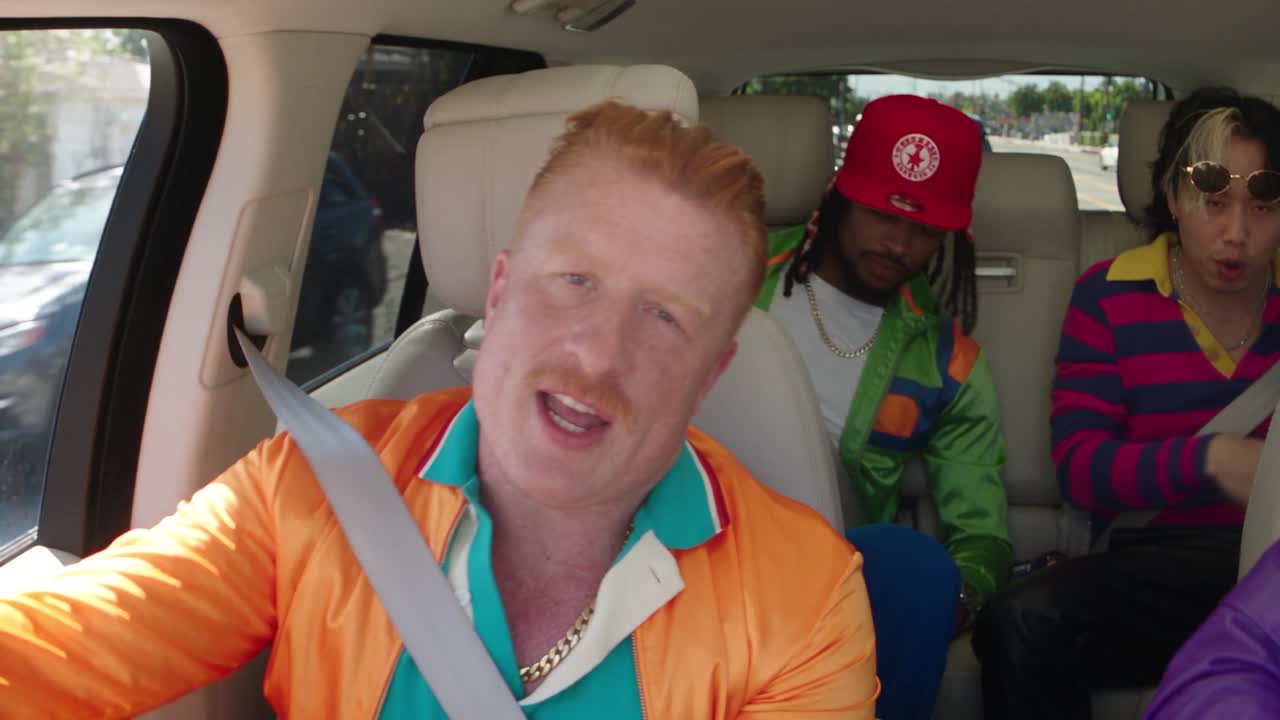
A NEW TAKE ON YOUR FOOTAGEYour character.
Your character.
The same moves.
Bring a performance. Add your character. Turn the movement you love into a video that’s yours.
One clip. One photo. A new performance.
From a reference to your next creation, all in TransferLab.
- 1
Upload the movement
Start with a clip of the performance you want to keep. Trim it in the studio if needed.
- 2
Add your character
Upload a clear reference photo. Describe who to replace and what should stay the same.
- 3
Review and generate
Choose your quality, check the exact credit cost, then generate and download your video.
Need a starting clip?
Pick a motion preset, then add your reference photos. These are source clips for you to recast.
Use preset
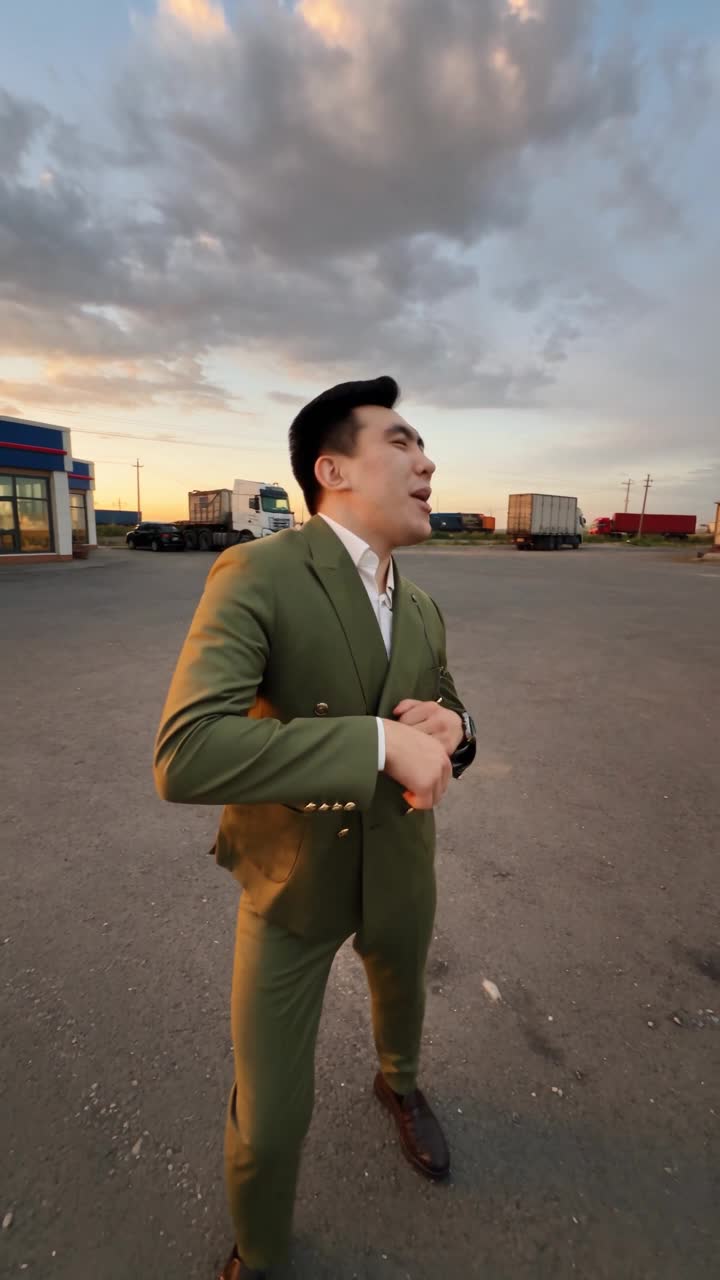
Trio character swap
3 reference photos · Source clip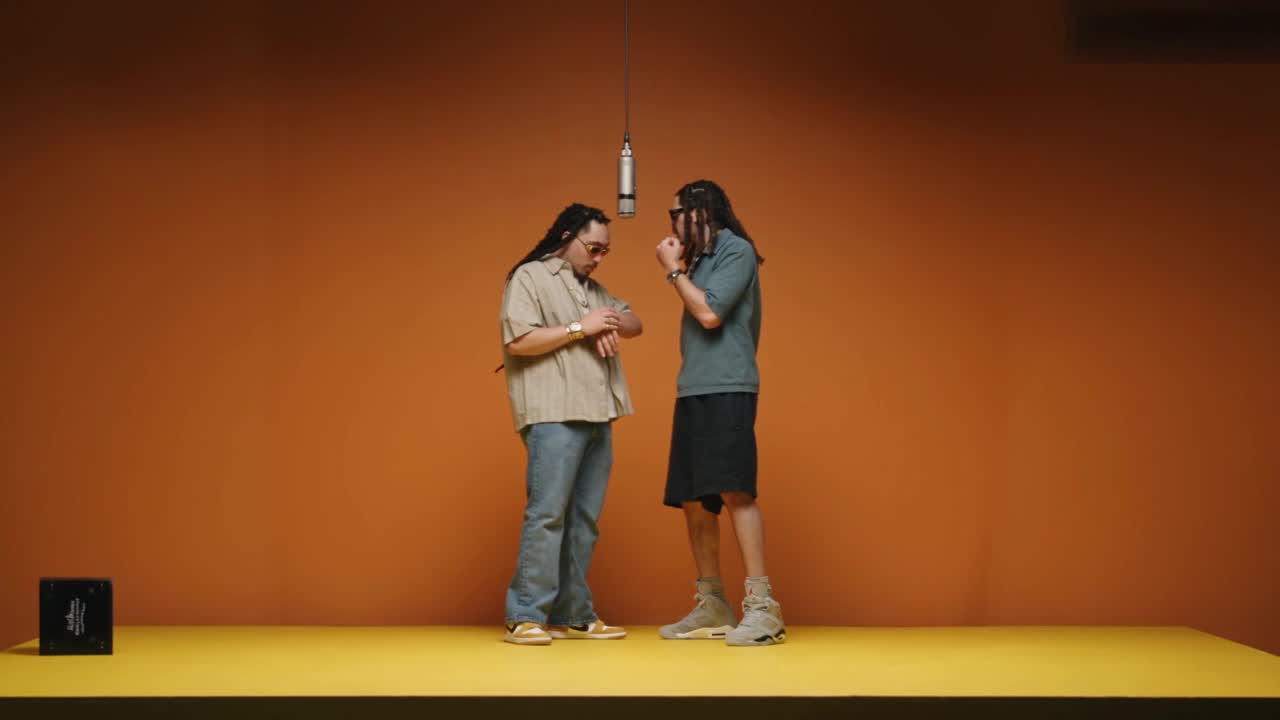
Duo character swap
2 reference photos · Source clipMore ways to work with video.
Looking for something beyond motion transfer? Start here.
Before your first motion transfer.
Reelform is an AI video studio for motion transfer and object swaps. Upload footage and reference images to create character remixes, product variations, site concepts, and other edits using Genjutsu and additional video models.
Choose Motion Transfer when a source performance should guide a character from your reference image. Choose Object Swap when you want to replace an object in an existing shot. Motion Transfer is selected when you open the studio. Find Object Swap and other models under Other tools & models. Both Genjutsu tools need a source video and at least one reference image; the studio shows the available settings and cost.
Genjutsu Motion Transfer requires paid credits. The optional free trial uses Seedance 2.5 Edit, a different tool. Eligible new users can try one successful transformation with a verified email and no credit card. Upload a 4–5 second clip for Seedance 2.5 Edit at 480p, with original audio and up to one reference photo. Failed attempts can be retried up to three attempts total. The pilot is limited to 100 users and a shared budget, so availability may end sooner. One trial per person; creating duplicate accounts does not grant more trials. Other models and settings require credits.
Yes. Reelform does not take ownership of videos you upload or create. Community sharing is optional: you choose what to publish, keep your rights, and can remove your posts anytime. Publishing only gives us permission to host and display the post. You must have permission for any third-party content in your video.
Yes. Open CinemaLab to create a new video, or choose a Create model under Other tools & models in the studio. You can add photos to guide it, or a clip for inspiration, but neither is required. Pick the length and shape (landscape, vertical, square, and more) in the settings. Genjutsu Motion Transfer and Object Swap always need your video and at least one photo, and editing models need a video to edit.
MP4, MOV, M4V, or WebM files up to 1 GB. Clips longer than your plan allows, up to 10 minutes, open in the built-in editor so you can trim them down: 10 seconds on Starter, 20 on Pro, and 30 on Studio. Add JPG, PNG, or WebP reference photos to guide the change. Short, well-lit clips with a clearly visible subject and simple movement work best.
Yes. The studio editor lets you trim, split, delete, and reorder parts of a clip and mute its sound. Editing happens on your device, so nothing is uploaded until you use the result. You can also open a finished video in the editor to download a cut or send it back to the AI.
Type @ in your prompt to mention @video or a photo, like “replace the car in @video with the one in @image2.” Photos are numbered in the order you add them.
480p and 720p on every plan. Full HD 1080p is included with Pro and Studio for supported models, including both Genjutsu tools. Higher quality costs more credits; the studio shows the exact cost before you send.
Each video’s credit cost depends on its model, quality, and length, and is shown before you send. If a generation fails or is blocked, your credits are returned automatically. Credits expire 90 days after they become available.
Our video provider’s content filter blocks some requests without saying which input triggered it. The most common causes are photos of real or famous people and professionally produced footage featuring well-known performers, such as music videos. Your own footage with photos of yourself, people who agreed to it, or original characters works best. Blocked generations return your credits.
The original video guides the action, while your prompt and reference photos guide the changes. AI can vary faces, motion, and fine details, so results may need another iteration. Avoid fast cuts and heavily obscured faces for a clearer starting point.
Explore fixtures, furnishings, or equipment in short site clips for client conversations and marketing. Treat outputs as visual concepts: AI may change dimensions, materials, and details, so check them before presenting them as a proposed design.
Video generation is powered by Higgsfield. Reelform sends your footage, references, and prompt to the selected video model, then brings the completed result back to the studio.
The homepage shows source clips you can use with the motion presets. They are starting footage, not generated results or before-and-after demonstrations. Add your own reference photos in the studio to recast them.
Give your character
the next move.
Start motion transfer Exact credits shown before generation. See plans and costs.